
xTool M2 Review: My Experience as a Cricut Crafter
This post may contain affiliate links. As an Amazon Associate, I earn from qualifying purchases. Please see my privacy policy for full details.
If you’ve been following me for a while, you know how much I love creating SVG files and making projects with my Cricut. In this xTool M2 review, I’m sharing what I’ve learned as a longtime Cricut crafter trying something new! I’ve been crafting for over 30 years, but laser crafting is still pretty new to me!
When xTool sent me their M2 10W Deluxe to try, I was excited to see what I could make with it. Over the past few months, I’ve been experimenting with cutting wood, engraving different materials, and even printing colorful designs onto my projects.
In this review, I’m sharing my experience as a longtime Cricut crafter, including what I’ve made, what I’ve learned, and the features I’ve come to love. And don’t worry, I’m not giving up my Cricut anytime soon!
Disclosure: xTool provided my M2 and accessories as part of a product collaboration. This post contains affiliate links, which means I may earn a small commission if you purchase through my links, at no additional cost to you. All opinions and project experiences are my own.
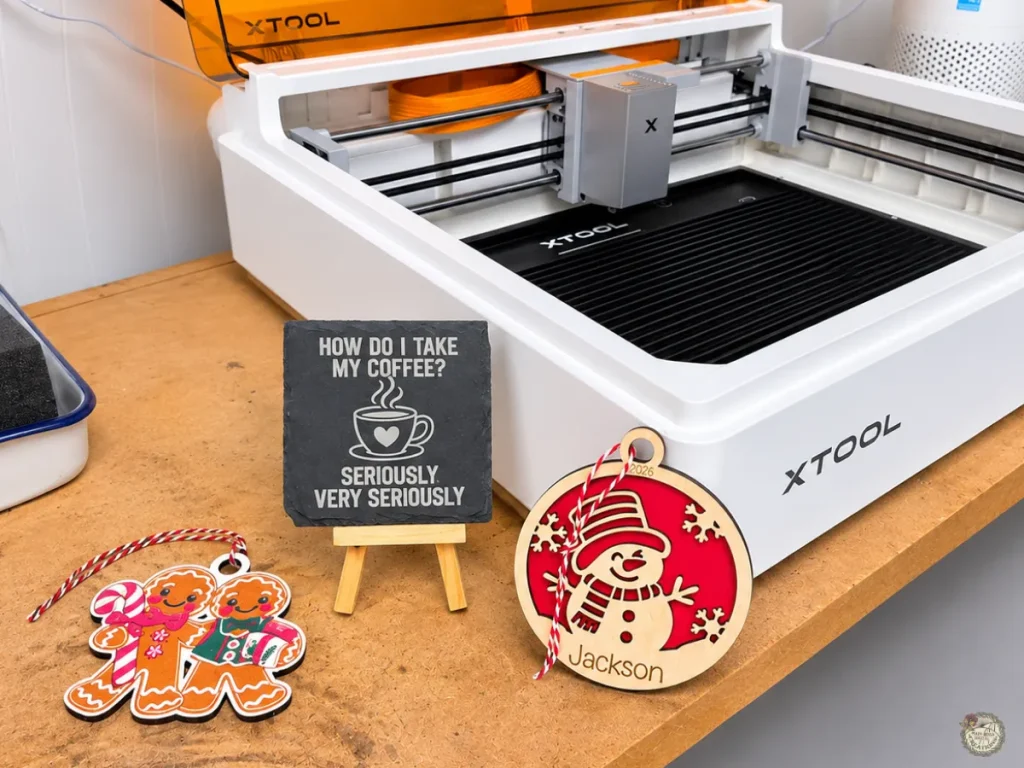
My First Impressions of the xTool M2
My xTool M2 10W Deluxe arrived in July 2026, and I couldn’t wait to get it out of the box! The machine was well packaged, with protective foam and the accessories tucked inside.
Even though I’ve been crafting for years, getting started with a laser cutter was something new for me. I was excited to see what I could create, but I also knew there would be a little learning involved!
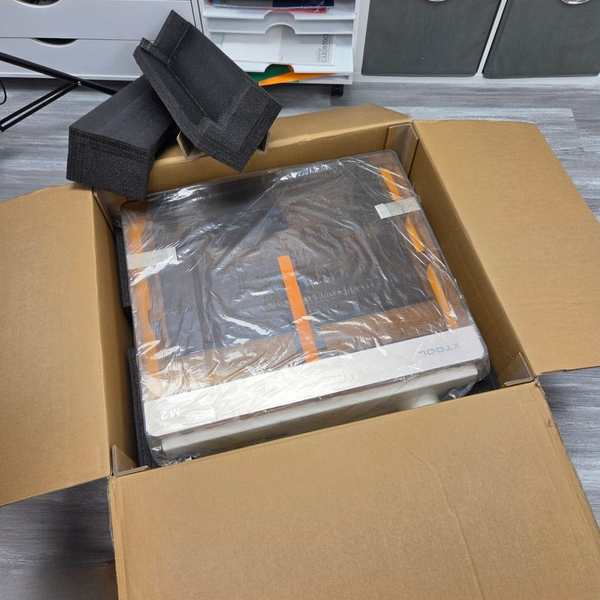
Venting My xTool M2 Outside
One of the first things we needed to figure out was proper ventilation. Unlike my Cricut machines, laser cutting and engraving produce smoke and fumes that need to be safely vented outside.
Since my craft room is in our basement, my husband installed a vent through the craft room wall. From there, he extended the ductwork across the basement and through an exterior wall of our house, allowing the fumes to exhaust completely outdoors.
If you’re considering a laser cutter, I definitely recommend planning your ventilation setup ahead of time. It’s an important part of using the machine safely!
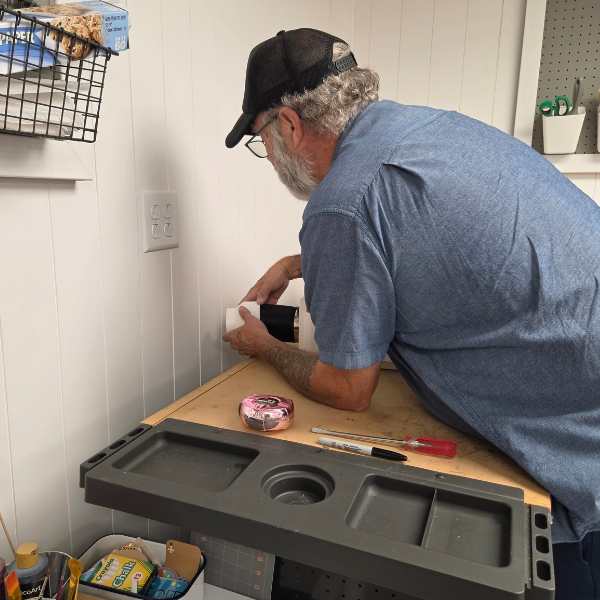
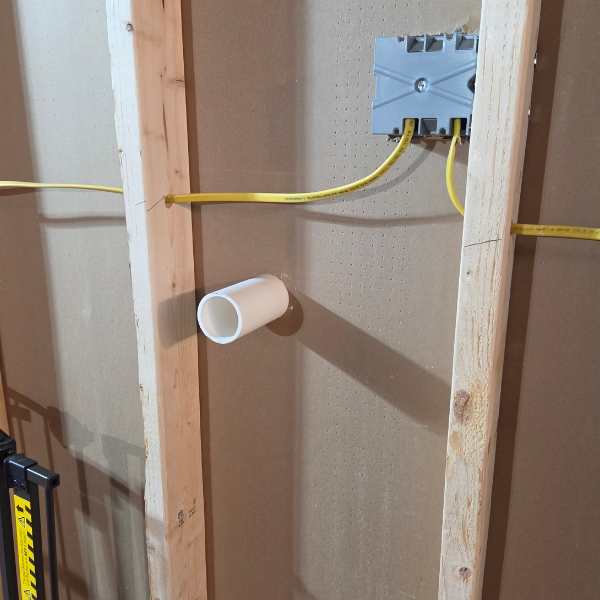
My husband installing the vent in my basement craft room. The ductwork continues through the basement and exits through an exterior wall of our house.
What Is the xTool M2?
The xTool M2 is a desktop laser cutting and engraving machine that can also print full-color designs using the compatible CMYK Inkjet Printing Module. I have the xTool M2 10W Deluxe, which allows me to cut, engrave, and print on different materials.
Unlike my Cricut, which uses a blade to cut materials like cardstock and vinyl, the M2 uses a laser to cut and engrave materials such as basswood and MDF. I can also engrave designs onto slate and use the printing module to add colorful images directly to my projects.
My xTool M2 10W Deluxe Bundle came with the 10W diode laser, CMYK Inkjet Printing Module, and rotary attachment. I love having the option to switch between laser cutting, engraving, and full-color printing, depending on what I’m making. I haven’t experimented with the rotary attachment yet, but it’s another feature I’m looking forward to trying!
Here are some of the xTool M2 features I’ve been using:
- 10W diode laser: Cuts and engraves compatible materials.
- CMYK Inkjet Printing Module: Prints full-color designs onto suitable surfaces.
- Built-in dual cameras: Help position designs on materials.
- xTool Studio software: Lets me import SVG files, create designs, and make adjustments.
- Preview feature: Helps me check design placement before cutting or engraving.
You can also visit the official xTool website to learn more about their laser cutting and engraving machines.
Using xTool Studio as a Cricut Crafter
Since I’ve been using Cricut Design Space and Adobe Illustrator for years, I wasn’t sure what to expect when I started using xTool Studio. But I’ve been pleasantly surprised by how easy it is to work with!
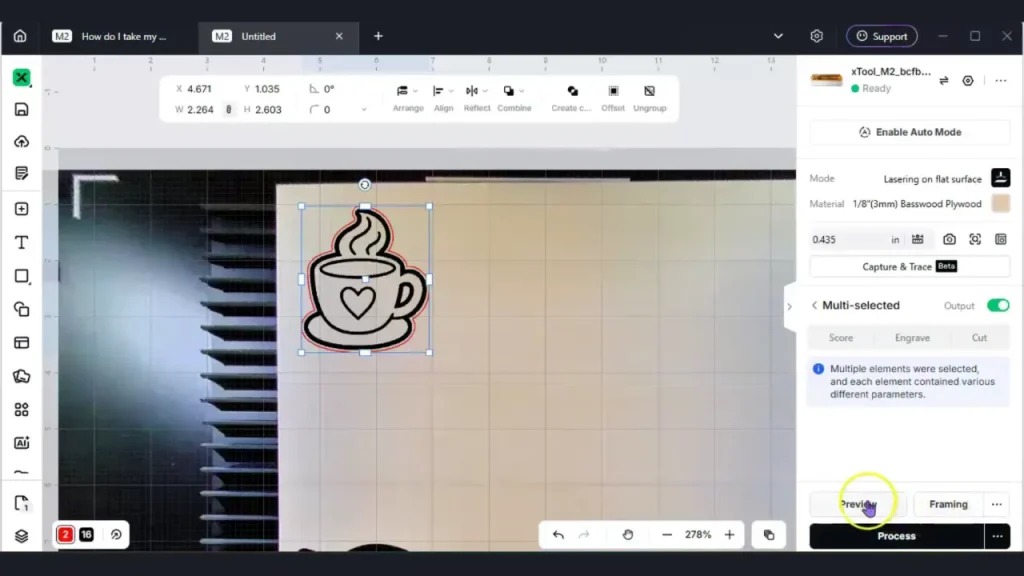
One of my favorite features is the built-in camera. I love being able to see my material right in the software and position my designs exactly where I want them. It’s especially helpful when I’m working with smaller pieces of wood or trying to use up scraps.
I was also amazed at how easy it is to edit designs directly in xTool Studio. I can import my SVG files, make adjustments, and even delete individual nodes without having to go back to Illustrator. That was something I really appreciated!
And then there’s the preview feature, which I absolutely love! Being able to check where my design will go before starting gives me that extra reassurance that everything is lined up correctly.
Between the camera, editing tools, and preview feature, I feel like xTool has made the design process incredibly beginner-friendly. There’s still a learning curve with materials and settings, but these features have made getting started much easier than I expected.
Projects I’ve Made with My xTool M2
Over the past few months, I’ve had so much fun experimenting with different materials and projects using my xTool M2! From cutting wooden ornaments to engraving slate and printing photos on canvas, each project has taught me something new.
Here are some of the projects I’ve made, along with links to my tutorials if you’d like to see how I created them!
DIY Wooden Christmas Ornaments
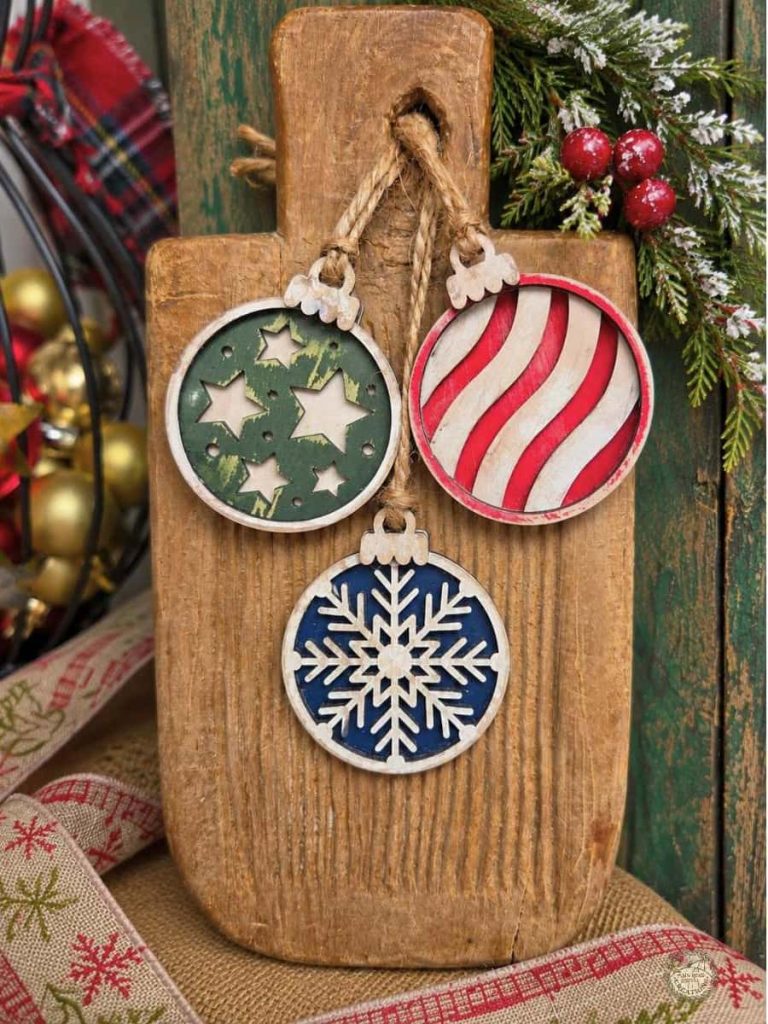
Another project I really enjoyed was turning my Christmas ornament SVG designs into wooden ornaments using 3mm basswood. These were originally designs I created for cardstock, so I loved seeing how different they looked when cut from wood!
After cutting the pieces with my M2, I painted and lightly sanded them for a rustic look, glued the layers together, and added jute hangers.
You can see the entire process in my Easy xTool M2 Wood Ornaments Tutorial, where I also share the free SVG files and step-by-step video.
Pumpkin SVG Projects with Wood and Slate
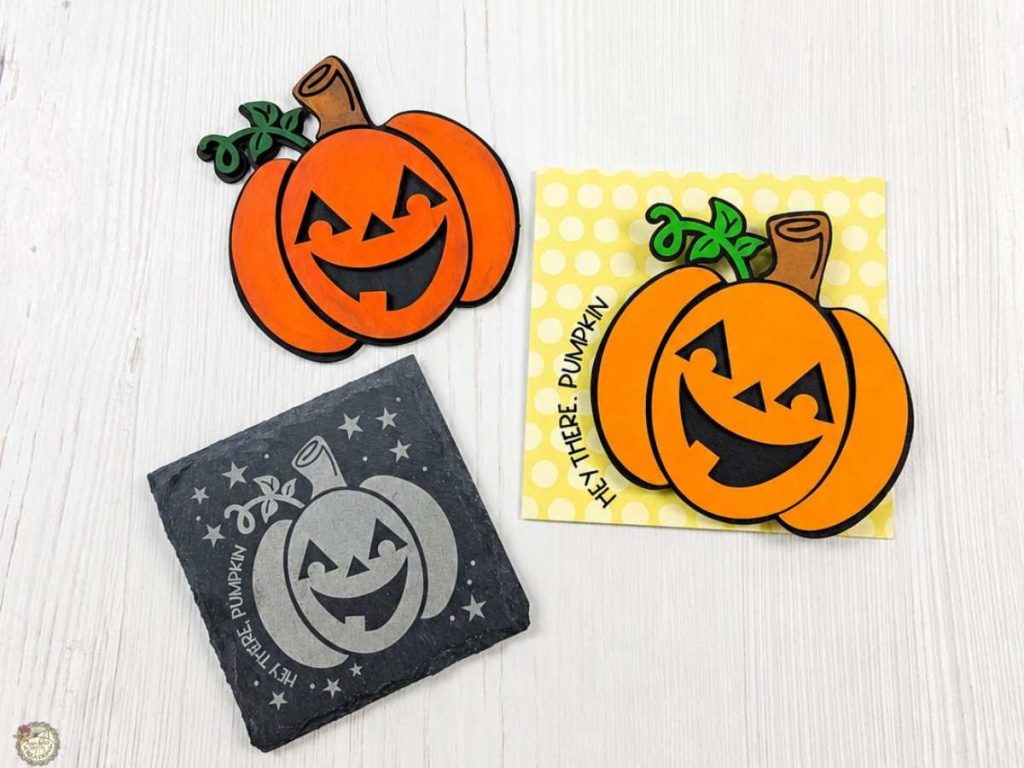
My pumpkin SVG was actually one of my first projects with the xTool M2! I wanted to see how the same design would look using two different materials.
First, I engraved the pumpkin design onto slate. Then I used 3mm basswood to cut the layers, painted them, and assembled a cute little wooden pumpkin decoration. I loved seeing how different the same SVG looked on each material!
You can see both projects in my Free Pumpkin SVG xTool M2 Project Ideas tutorial, where I share the process and free SVG file.
Printing Photos on Canvas with the xTool M2
One of my favorite experiments was printing a Christmas photo of my grandson onto a 4×6 canvas from Dollar Tree using the xTool M2’s CMYK Inkjet Printing Module.
My first attempts didn’t turn out quite as I’d hoped. The colors were faded and spotty, but after experimenting with inkAID White Matte to prepare the canvas, I got much better results!
I also tested different ink concentration settings to see how they affected the finished photo. You can see all my test results and what worked best in my How to Print Photos on Canvas with the xTool M2 tutorial.

Christmas Gifts and Craft Fair Projects with the xTool M2
For my latest xTool M2 projects, I wanted to try making several easy Christmas gifts and craft fair ideas using different materials and techniques.
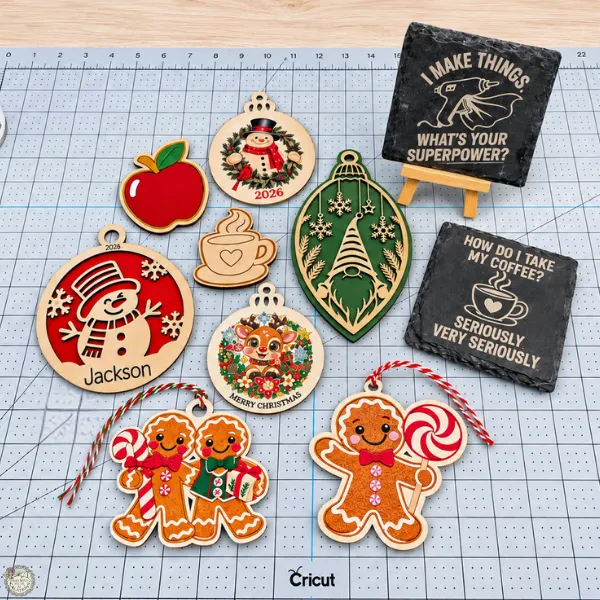
I made colorful gingerbread ornaments, printed snowman ornaments, a layered wooden snowman ornament, engraved slate coasters, and some adorable little wooden magnets. These projects gave me a chance to experiment with laser cutting, engraving, and full-color printing!
One thing I learned while making the wooden magnets was the difference between scoring and engraving. After testing both, I found that engraving the outlines worked better for me when adding paint to the designs.
You can see all five projects, along with my tips and tutorials, in my 5 Easy xTool M2 Christmas Gifts to Make or Sell at Craft Fairs blog post.
H2: What I Like About the xTool M2
One of the things I love most about the xTool M2 is being able to use SVG designs I’ve already created and turn them into completely different projects. Designs I originally made for cardstock can now become wooden ornaments, engraved decorations, and personalized gifts!
I also love having the ability to cut, engrave, and print with one machine by switching between the compatible modules. It’s been fun experimenting with different materials and discovering new ways to use my designs.
And I have to mention the camera and preview features again because they’ve really impressed me! Being able to position my designs, make adjustments, and double-check everything before starting has made learning to use the M2 much less intimidating than I expected.
What I’ve Learned About the xTool M2
As much as I’ve enjoyed using my xTool M2, there’s definitely been a learning curve! Even with all my years of crafting experience, laser cutting and engraving are different from working with my Cricut.
One of the biggest things I’ve learned is that material preparation and settings really matter. My canvas printing experiments were a perfect example. The first results weren’t great, but after preparing the canvas and adjusting my settings, I saw a big improvement.
I’ve also learned that sometimes it takes a few test cuts or adjustments to get the results I want. And honestly, that’s just part of learning something new! I’m still experimenting, but I’ve become much more comfortable using the machine over the past few months.
xTool M2 vs. Cricut: What’s the Difference?
One question I think other Cricut crafters might have is whether the xTool M2 can replace their Cricut. For me, the answer is no, and that’s perfectly fine!
I still use my Cricut for cardstock, vinyl, HTV, and all the other projects I love making. But the xTool M2 gives me the ability to work with materials like wood and slate in ways my Cricut can’t.
What I really enjoy is being able to use many of the same SVG designs with both machines. A design I originally created for a cardstock project can become a layered wooden decoration or an engraved gift.
I don’t see these machines as competing with each other. Instead, I think they complement each other and give me even more creative options!
Is the xTool M2 Worth It for Cricut Crafters?
I think that really depends on the type of crafting you enjoy! If you mainly make cardstock projects, vinyl decals, and T-shirts, you might be perfectly happy sticking with your Cricut.
But if you’ve been curious about laser crafting and want to try cutting wood, engraving personalized gifts, or printing colorful designs on different materials, the xTool M2 is definitely worth considering.
For me, it’s been a fun addition to my craft room. I love being able to use my existing SVG designs in new ways, and I’ve enjoyed learning what this machine can do. Just keep in mind that there’s a learning curve, and you’ll need to plan for proper ventilation and workspace.
If you’d like to learn more, you can check out the xTool M2 and its available bundle options here.
My Final Thoughts on the xTool M2
When I first received my xTool M2, I wasn’t sure how much I would enjoy laser crafting. But after several months of experimenting with different materials and projects, I’ve really enjoyed learning something new!
I still have plenty to learn, but that’s part of the fun of crafting. The M2 has given me another way to bring my SVG designs to life, and I’m excited to see what else I can create with it.
If you’re a Cricut crafter who’s been thinking about trying laser crafting, I hope my xTool M2 review has given you a better idea of what to expect.
Now I’d love to hear from you! Have you tried laser crafting, or is it something you’ve been thinking about adding to your craft room? Head on over to my Facebook group and let’s chat about it! I’d love to hear what you’re making or what you’d like to try!

Are you on Facebook?
Join our group!
We’d love to have you!
Curious about the xTool M2? Save this review to Pinterest so you can find it later!
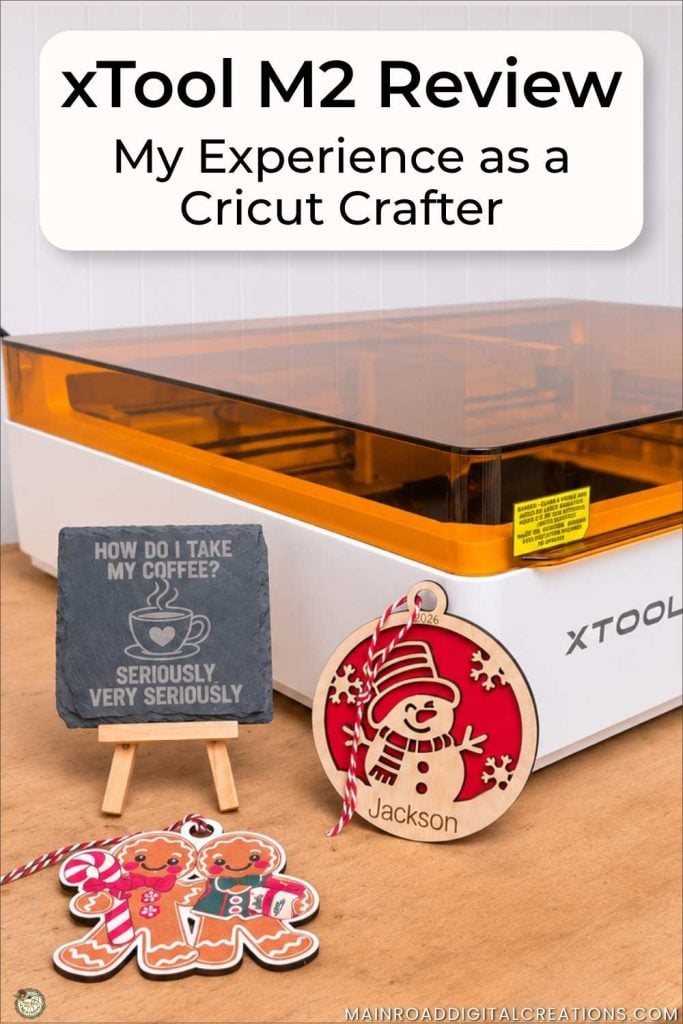
Pin the image above to your favorite Cricut or laser crafting Pinterest board so you can easily find my xTool M2 review, project ideas, and helpful tips when you’re ready to explore laser crafting!
Looking for More Crafting Inspiration? Try Another Fun Project!

Check out my shop for fun and creative designs you can use in your projects!

Join the Creative Fabrica Membership

Fonts, designs, and so much crafty goodness! Over 16 million digital files are waiting! In partnership with Main Road Digital Creations, your first 10 downloads are totally free. After that? It’s just $47 a year (yep, that’s $3.99/month) with full commercial and POD use included. Sign up for Free!